A box is empty? Fill it from HubSpot (and remember it)
On the review screen, link an empty box to a HubSpot field in four clicks, and let admins save it so it fills itself next time.
A box is empty when its name doesn't match a HubSpot detail (for example Buyer Name) or when that detail is blank on this record. You can just type a value, or tell Easy eSign where it lives.
- 1Under the empty box, click Empty. Fill from a HubSpot field.
- 2Choose the kind of record it comes from: Deal, Contact, Company or a custom object. Contact means the person picked for that role.
- 3Click the second box and search for the detail, for example “First name”. Click it.
- 4Admins also see Remember for this template, ticked. Leave it ticked so this box fills itself every time you send this template.
- 5Click Fill it in.
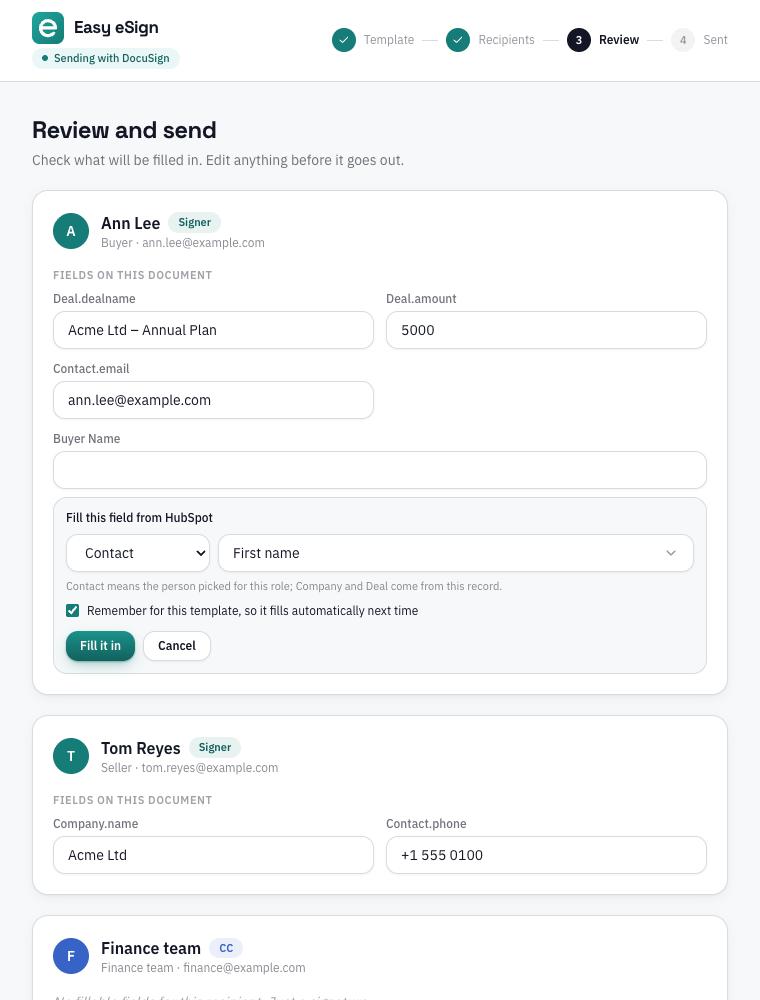
Choose where the value comes from.
- 1The kind of record.
- 2The detail on that record.
- 3Tick to save it for next time (admins).
- 4Fill the box now.
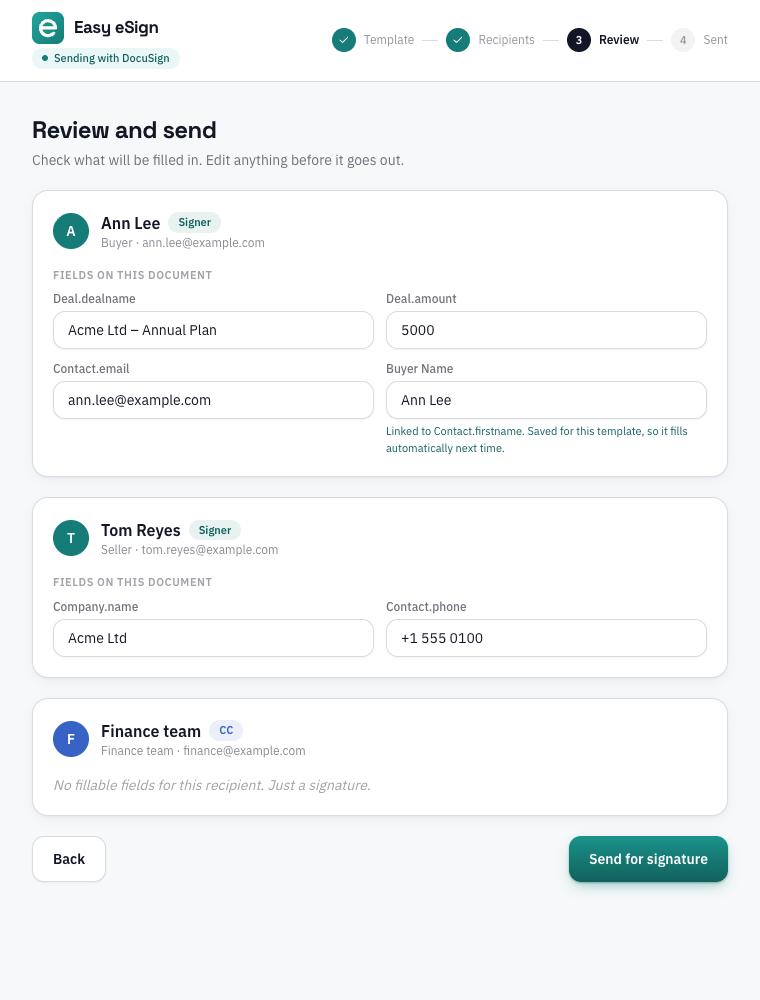
Done: the box shows the value and says it was saved.
- 1The box is filled in.
- 2This note confirms it was saved for this template.
Not the admin?
You still get the value for this document, but it isn't saved for next time. The screen tells you so. Ask your admin to do it once.
Good to know
A saved link only applies to that exact box name. If you rename the box in DocuSign or PandaDoc, link it again. Admins can also manage saved links under Templates → Custom field names in the Easy eSign menu.
Prefer it to fill by itself from the start? Name the box properly in your template.
Was this not what you needed? Contact support and tell us what was unclear.