Send your first document in five steps
A short test run: pick a Deal, choose a template, check the filled-in details and send. Takes about five minutes.
Who: EveryoneAbout 5 min
Before you start, make sure your admin has connected DocuSign or PandaDoc and added the card, and that you have at least one template with a signer.
Test on yourself first
Use a Deal that has a contact with your own email address. Then you can open the signing email yourself and see exactly what a customer sees.
- 1Open the Deal. In the right sidebar click Send for Signature. A window opens.
- 2Click a template. Only templates that have a signer are listed.
- 3Pick who signs. The people linked to the Deal are suggested. Click Next: Review.
- 4Check the details. Each box shows the value found in HubSpot. Click a box to change it.
- 5Click Send for signature. One credit is used and the signer gets an email from DocuSign or PandaDoc.
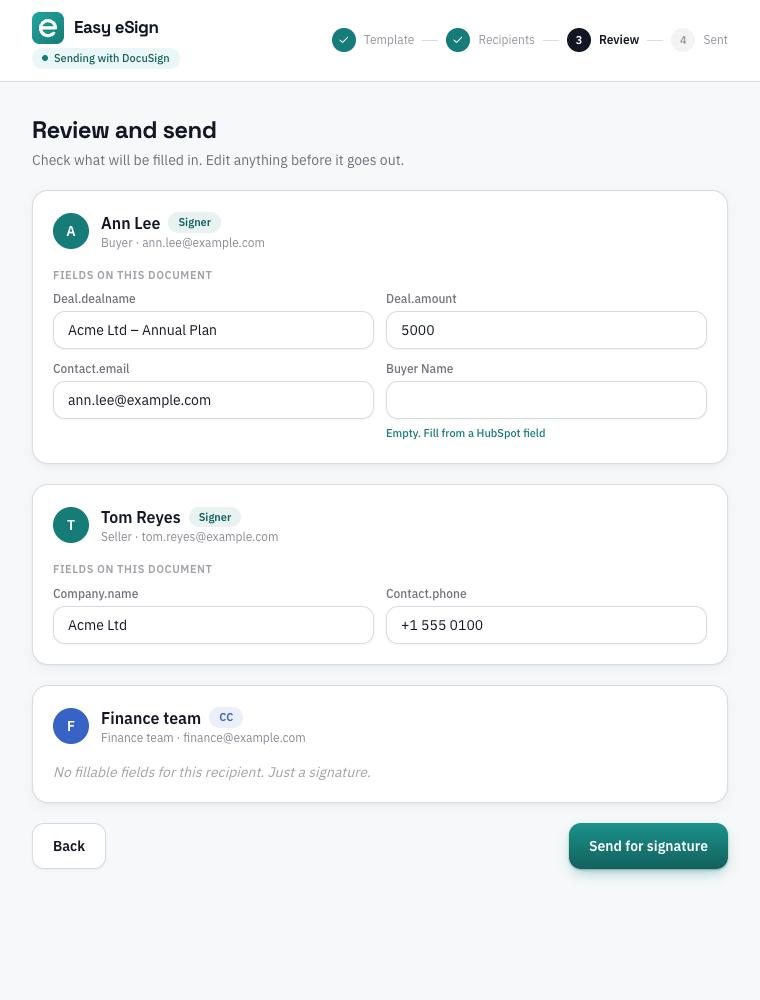
Step 4: the last look before anything is sent.
- 1Filled in from HubSpot. Click to edit.
- 2Sends the document.
What happens next
- The card on the record shows the document with a status (
Sent, thenCompletedonce everyone has signed). - When it's completed, the signed PDF is attached to the record as a note.
What to read next
- Sending in detail — every screen explained
- Track your documents
- A box is empty?
Was this not what you needed? Contact support and tell us what was unclear.