Add the Send for Signature card to your HubSpot records
HubSpot does not let apps add themselves to a record. Here is how to add the Send for Signature card to Deals, Contacts, Companies and custom objects.
The card is the Send for Signature box in the right-hand sidebar of a record. HubSpot doesn't allow an app to put itself there, so you add it yourself. You do it once for each kind of record you want to send from, and it then appears on every record of that kind.
- 1Open any Deal in HubSpot. (To send from Contacts, open a Contact instead, and so on.)
- 2In the right sidebar, click Customize, then Card library.
- 3Filter the list by App and find Send for Signature. Click it to add it.
- 4Click Save. Reload the page.
- 5Repeat for Contacts, Companies and any custom objects you want to send from.
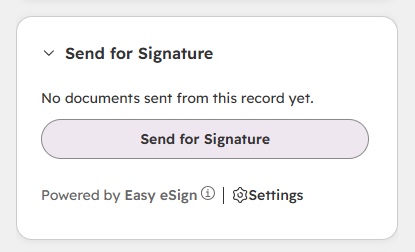
What you should see in the right sidebar once the card is added.
- 1Documents sent from this record are listed here.
- 2Click this button to start sending.
Does your team use more than one view?
HubSpot lets you create several views for a record type. Add the card to the view your team really opens, or they won't see it.
Still can't see it? Go to “I can't see the card”.
What to read next
- Send your first document
- Prepare a template — how to name boxes so they fill
Was this not what you needed? Contact support and tell us what was unclear.